Setting Up Equipment
To build an accurate model, DC needs to know what physical or intangible tools your business relies on. This isn't just a list; it’s how the system calculates capacity bottlenecks and depreciation expenses.
How to Add Equipment
-
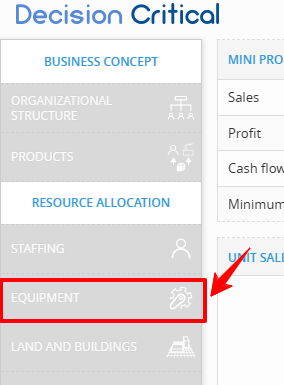
Navigate to Resource Allocation: In the main menu, find Resource Allocation and select Equipment.
-
Add New: Click the + Add New Equipment button in the top right.
-
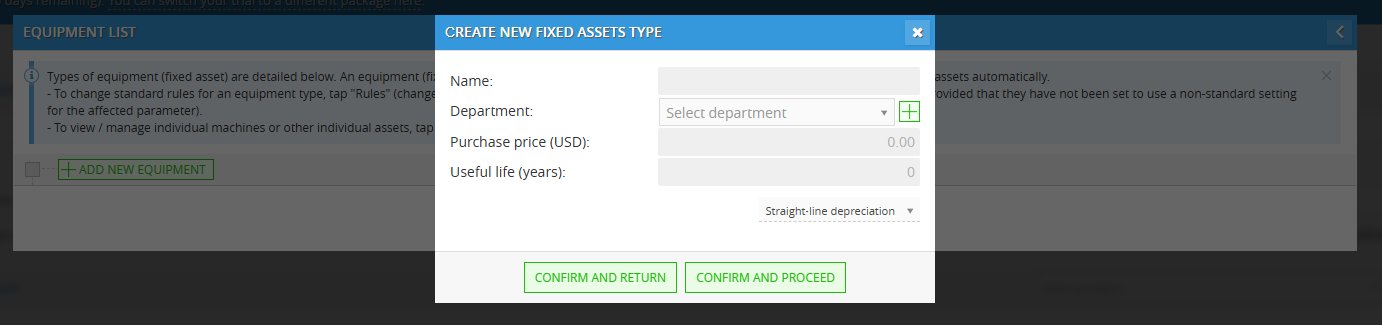
Define the Asset: Enter the name of the equipment (e.g., "Industrial CNC Machine" or "Delivery Van").
-
Select Depreciation Type: This determines how the asset hits your Balance Sheet and Income Statement:
-
Straight-line Depreciation: For physical assets that lose value over a set time (e.g., machinery, vehicles).
-
Intangible Non-Amortizing Asset: For assets that don't "wear out" in a traditional sense (e.g., certain licenses or land).
-
-
Confirm & Proceed: Click Confirm to save the entry.
Configuring Equipment Types (The "Rules" Phase)
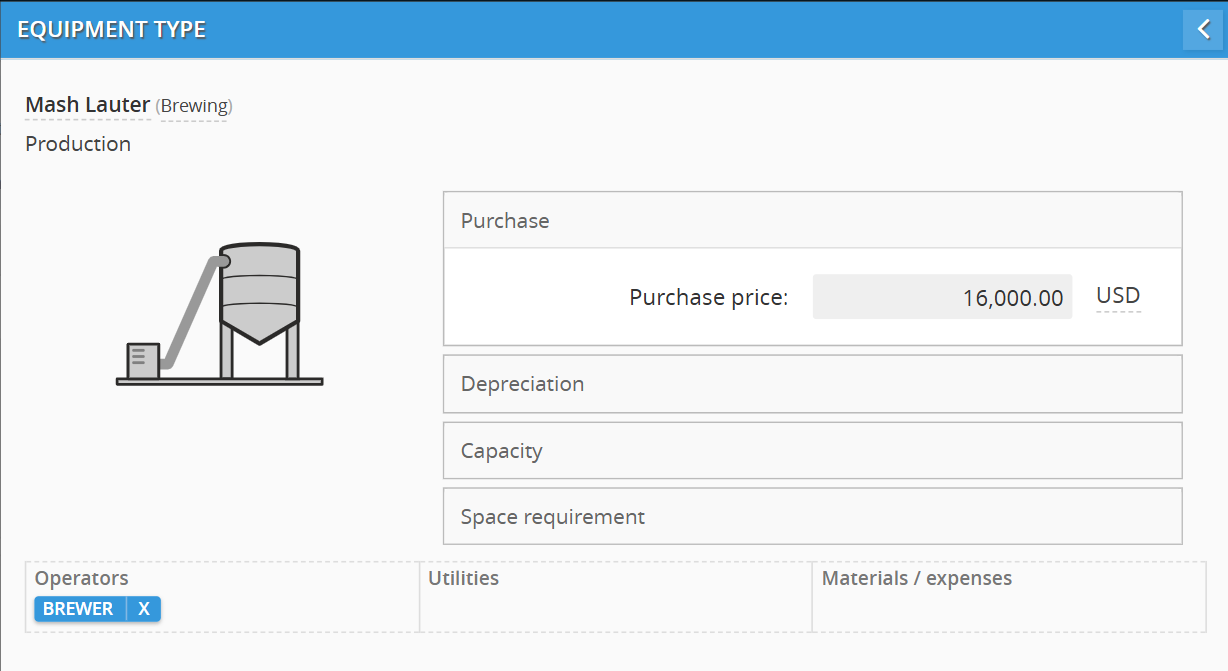
After confirming your new equipment, you’ll land on the Equipment Type screen. Think of this as the operational blueprint for your asset.
1. Header Information
At the top, you'll see the Product Name and the assigned Department. This ensures the costs (like depreciation and utilities) are hitting the right part of your P&L.
2. The Configuration Tabs
The middle section is broken down into four critical pillars:
-
Purchase: Define the acquisition cost and date.
-
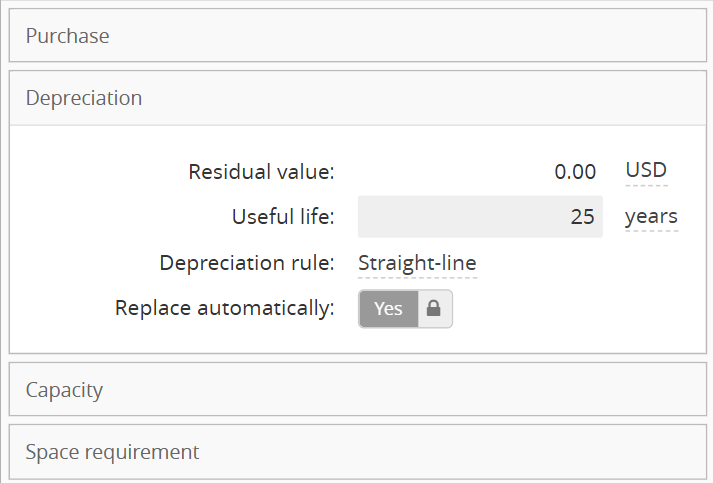
Depreciation: Manage the salvage value and the lifespan of the asset based on the type you selected in the previous step.
-
Residual Value: The estimated scrap or resale value at the end of its life.
-
Useful Life: How many years the equipment will remain operational.
-
Depreciation Rule:
-
Straight-line: For physical assets that lose value over a set time (e.g., machinery, vehicles).
-
Intangible Non-Amortizing Asset: For assets that don't "wear out" in a traditional sense (e.g., certain licenses or land).
-
-
-
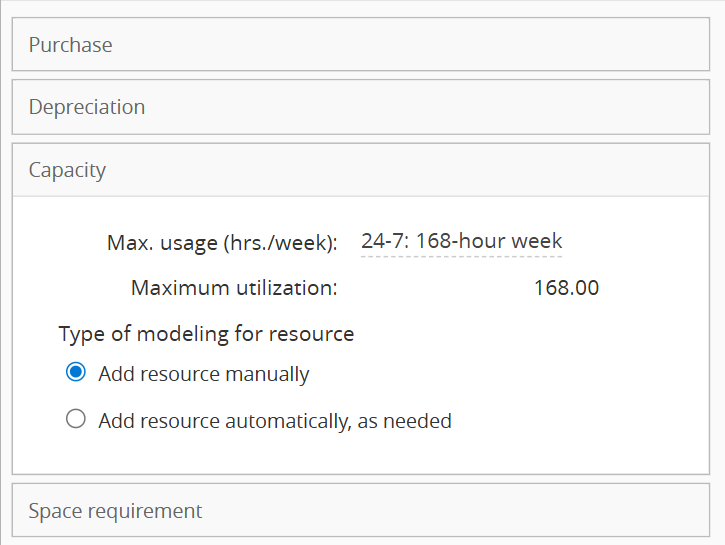
Capacity: Define the maximum output this machine can handle (e.g., units per hour).
-
Max Usage: Set the availability of the machine (e.g., a 24-7: 168-hour week).
-
Modeling Type:
-
Add resource manually: You control when new machines are added.
-
Add resource automatically, as needed: Company will "buy" more equipment for your model the moment demand exceeds your current capacity.
-
-
-
Space Requirement: How much physical "footprint" does this machine take up? DC uses this to calculate facility constraints and rent allocation.
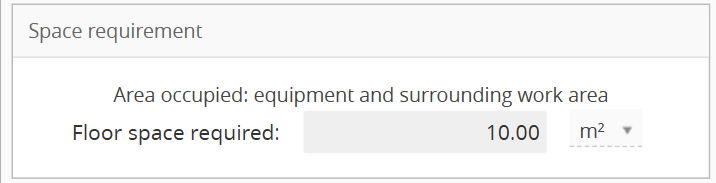
- Floor Space Required: Enter the total area occupied by the machine plus the surrounding work area.
3. The Usage Tab (Operational Costs)

-
Operators: Who is needed to run this?
-
This section tells DC exactly who needs to be on the floor when this machine is running.
Click + Add operator to add the new operator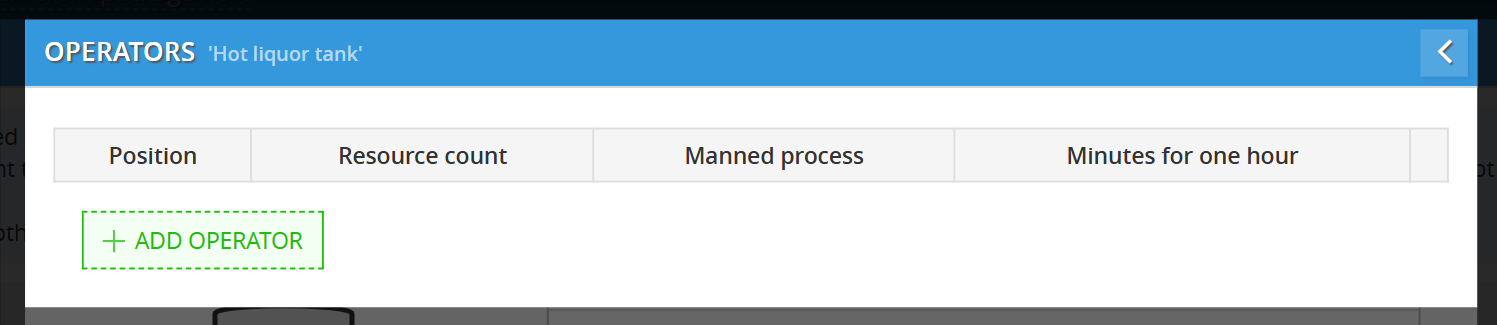
-
Position: Choose a role from your Staffing list (e.g., "Brewer").
-
Resource Count: Enter the number of people required to operate this specific machine at once.
-
Manned Process:
-
Fully-manned: The operator is dedicated to this machine for the entire duration of its run (automatically sets to "full time").
-
Partially-manned: Use this if one person monitors multiple machines. You can manually enter the Minutes for one hour they spend specifically on this unit.
-
-
-
-
Utilities: Does it require 3-phase power? Heavy water usage?
-
Use this to track variable costs like electricity, water, or gas that are only consumed when the machine is active.
Click + Add utilities to add the new operator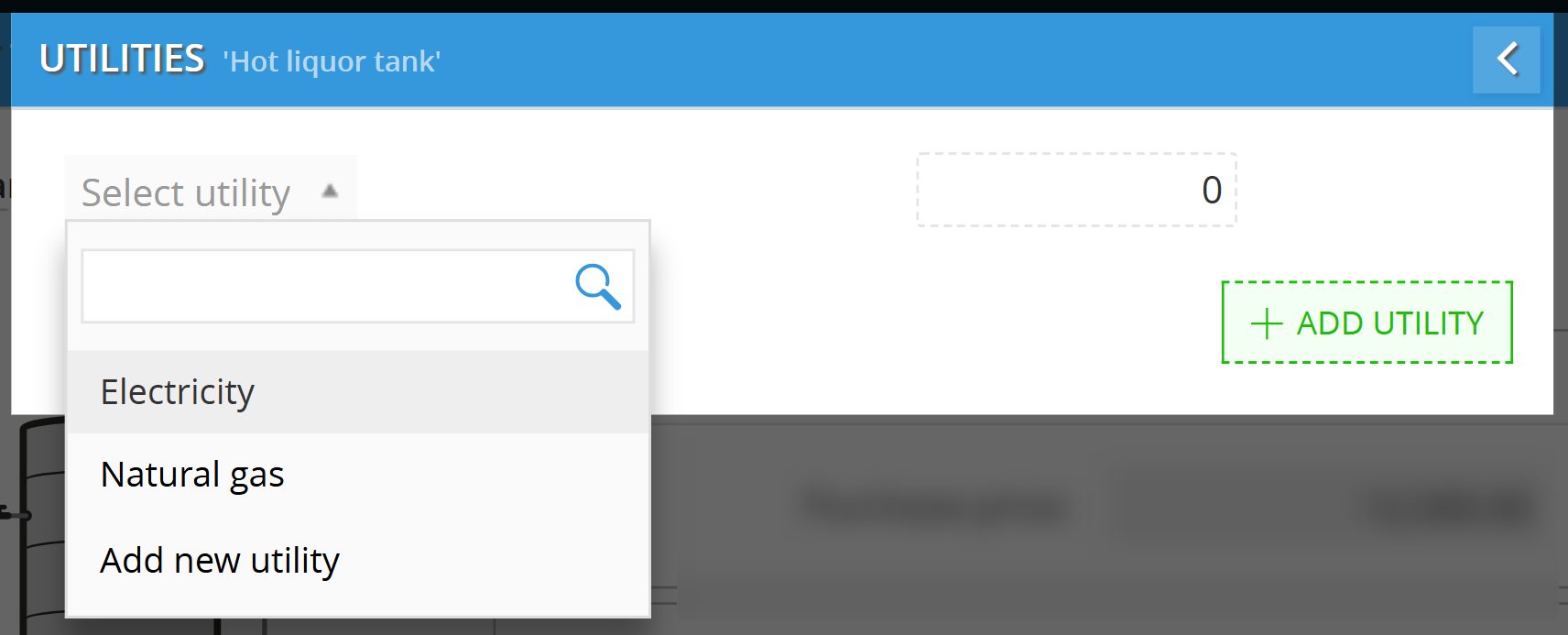
-
Select Utilities: Click into the Utilities section and select + Add Utility.
-
Identify the Source: Choose an existing utility from your list.
Note: If you haven't set up rates yet, select Add new utility to define the cost per unit of measure (e.g., $/kWh). -
Enter Consumption: Put in the number for how much that machine "eats" per hour of operation.
-
-
-
Materials / Expenses: What consumables does it "eat" to function? (e.g., lubricants, drill bits, or specialized packaging).
Click + Materials / Expenses to add the new operator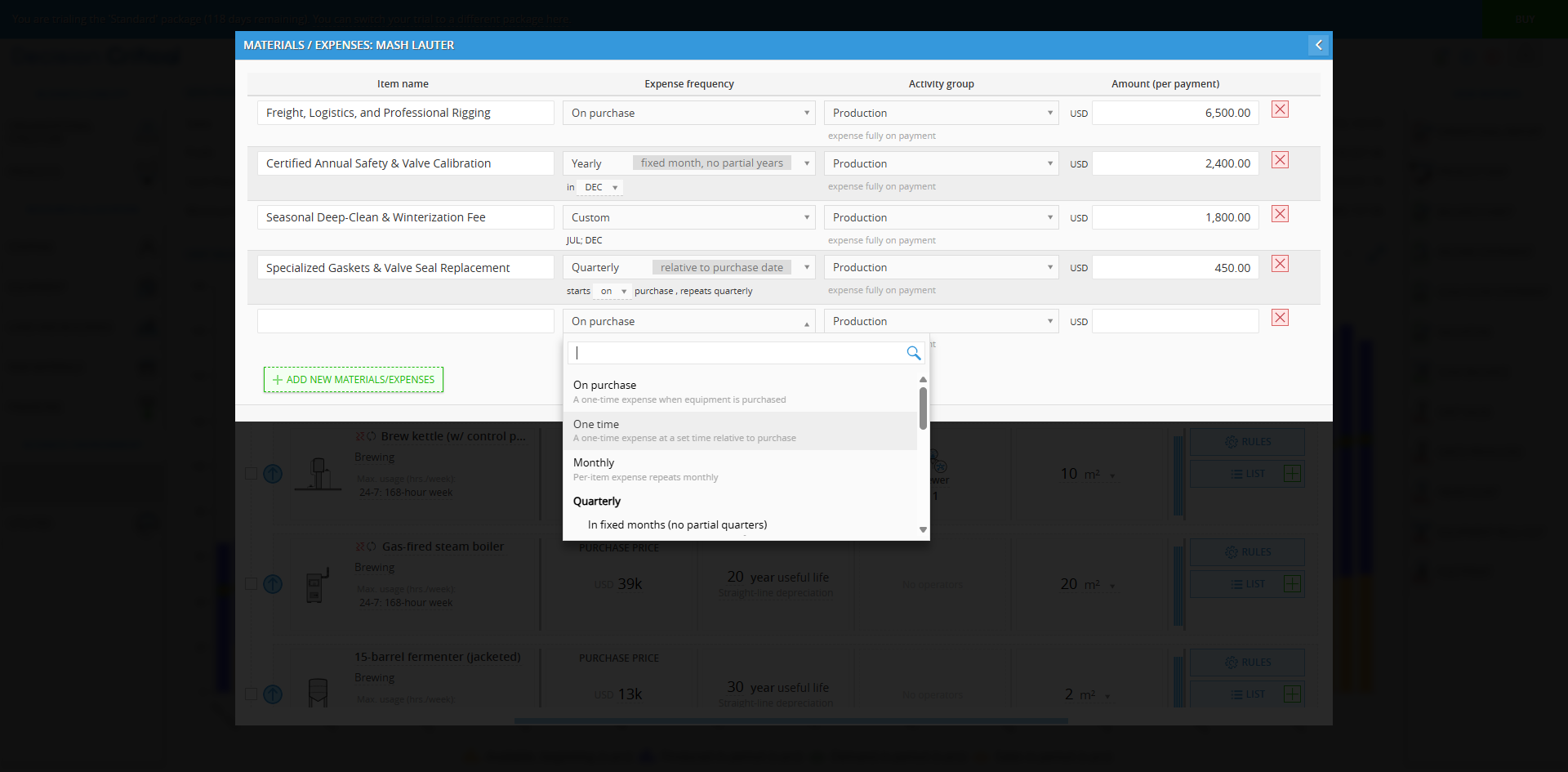
-
Create Entry: Click + Add New Materials/Expenses.
-
Define Expenses Frequency:
-
Monthly for regular maintenance or
-
One-time for initial setup costs.
-
Quarterly / Yearly (Recurring)
When selecting Quarterly or Yearly frequencies, a secondary rule defines how the payment aligns with calendar dates versus asset purchase dates:
-
In fixed months (no partial quarters / years):
-
Incurred in identical, predetermined calendar months across all equipment regardless of when each unit was purchased.
-
Newly purchased units skip any cost for the acquisition month and incur their first payment on the next qualifying calendar cycle.
-
Best for: Blanket facility vendor retainers, quarterly pest control, or fixed-month municipal safety audits.
-
-
In fixed months (prorate 1st quarter / year):
-
Aligns to standardized company billing months, but bills immediately in the purchase period for the active portion of that quarter or year calculated on a pro-rata basis.
-
Best for: Annual corporate property/equipment insurance policies that sync to a December 31 fiscal cycle, where additions mid-year are assessed partial premiums immediately.
-
-
Relative to purchase date:
-
Billed strictly every 3 months or every 12 months based on the asset's specific installation/purchase date.
-
Best for: OEM warranties, mandatory engine-hour service milestones, and certified wear-and-tear rebuilds tied directly to runtime rather than calendar quarters.
-
Custom Equipment-Driven Expenses
Selecting Custom opens a dedicated scheduling modal to map non-linear cash hits across a 12-month calendar:
Setting Function Practical Example By calendar month Pins expense amounts to specific months (JAN through DEC). Scheduling winter shutdown prep in JUL and boiler blowdowns in DEC for $1,800 each. Relative to purchase date Clears the calendar layout and schedules payments at custom monthly intervals offset from acquisition. Scheduling a mandatory 6-month break-in overhaul and an 18-month secondary tune-up. -
-
-
Assign Activity Group: Use the dropdown to tell the system where this cost belongs.
-
Enter Amount: Input the specific dollar value for the expense.
-
This is a common "blind spot."
-
If you select Fully-manned, the system assumes that for every hour the machine runs, it "locks" an operator for 60 minutes.
-
If you have a machine that only needs 10 minutes of setup every hour, use Partially-manned and enter "10". This allows DC to tell you that one person can actually run six of those machines at once.
Saving to the Knowledge Bank
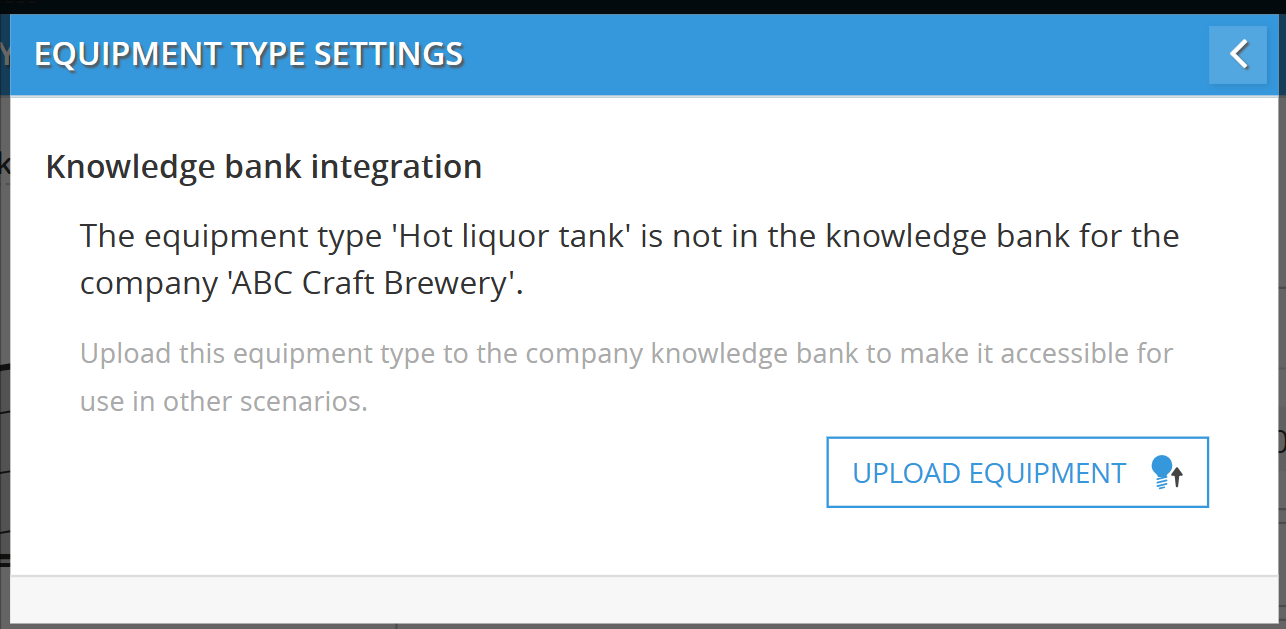
Once you have finished entering your equipment rules, you don't have to keep them trapped in a single scenario. You can upload the equipment type to your Company Knowledge Bank, making it a reusable template for any future models or scenarios you create.
💡 If this doesn’t solve your issue or you have more questions, feel free to reach out through our [contact form]. We’ll get back to you within 2–3 business days.
