Understand 'Utilities' assumption in scenario
The "Utilities" assumption enables you to define and manage the costs associated with essential utilities used in your business operations. This includes expenses for electricity, water, natural gas, steam, heat, and wastewater disposal, among others.
By setting these assumptions, you can estimate and adjust the impact of utility costs on your financial projections, helping you analyze scenarios under varying cost conditions for utilities essential to your operations.
Managing Utilities: Accounting for Operational Overhead
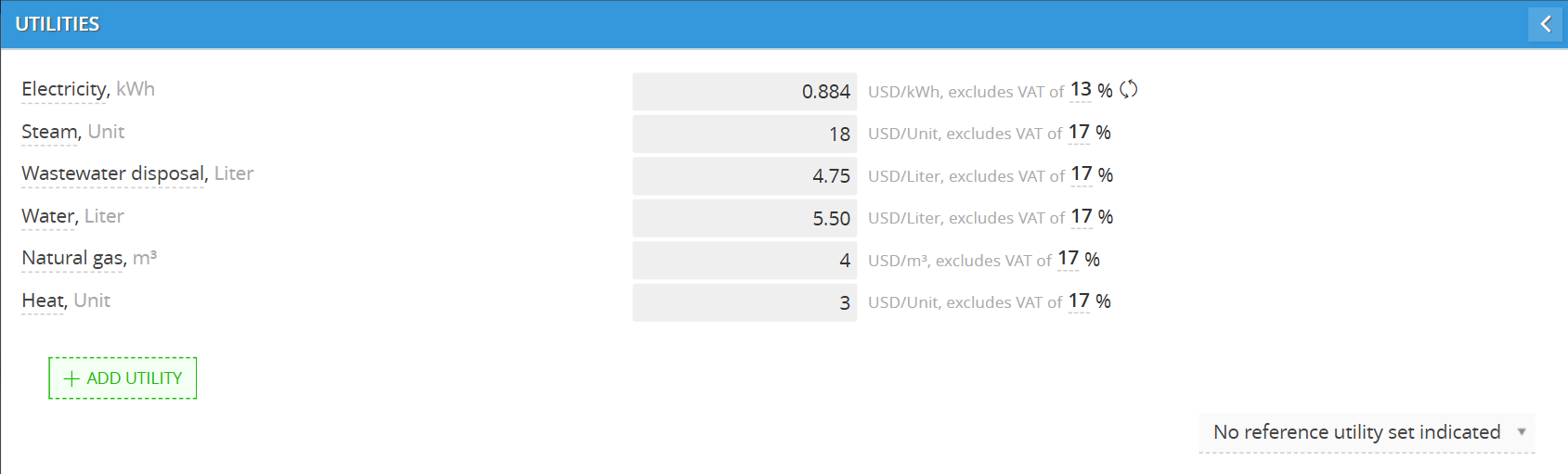
In Decision Critical, Utilities aren't just random bills; they are variable or fixed costs tied to your business environment. By defining these, you ensure your cash flow model reflects the true cost of keeping the lights on (and the machines running).
Available Utility Types
The system allows you to track several standard industrial and commercial utilities:
-
Electricity
-
Water
-
Natural Gas
-
Steam
-
Heat
-
Wastewater disposal
How to Add Utilities to Your Scenario
Follow these steps to integrate utility costs into your model:
-
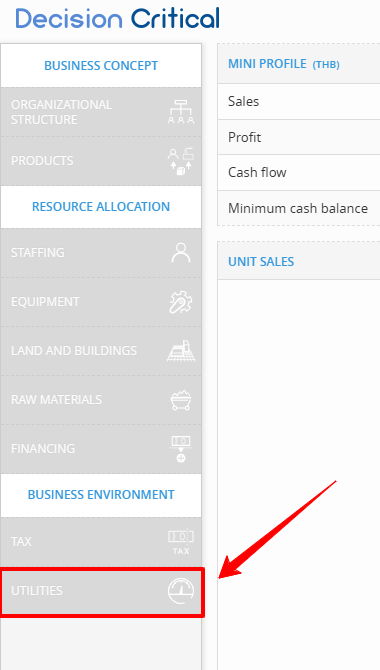
Navigate to Business Environment: In the left-hand sidebar, scroll down to the Business Environment section and click on Utilities.
-
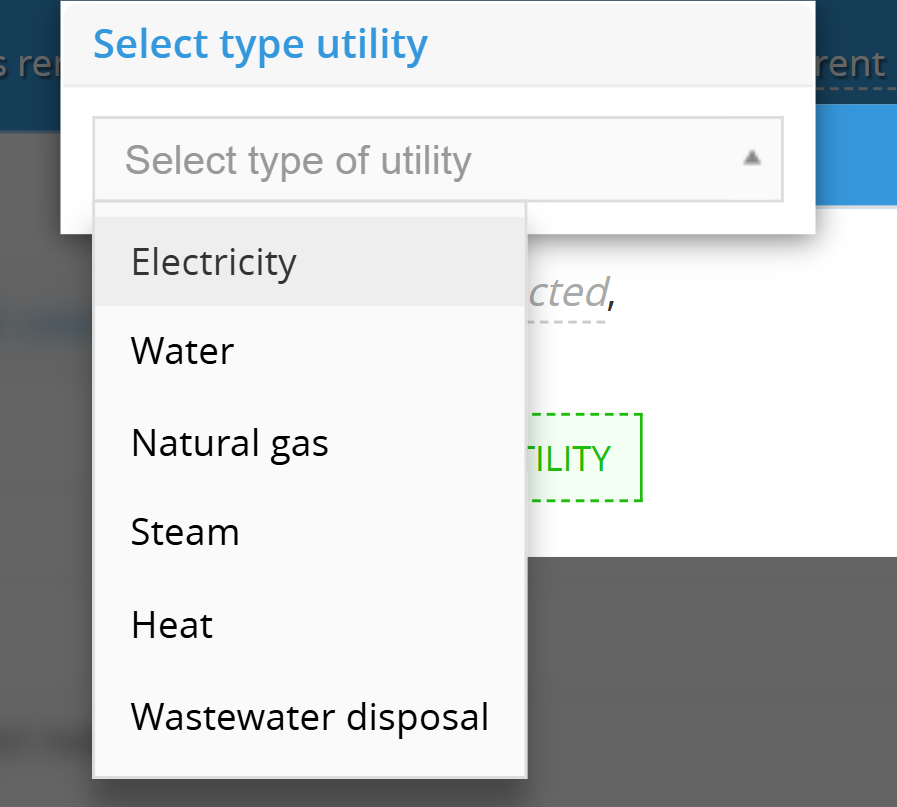
Initialize the Entry: Click the green + ADD UTILITY button.

-
Select Utility Type: In the dropdown menu labeled "Select type of utility," choose the relevant category (e.g., Electricity).
-
Define Costs: Enter the Cost per Unit based on your local rates or historical billing data.

-
Expand or Refine:
-
To add more categories, click + ADD UTILITY again.
-
To remove an entry, hover over the specific utility row and click the X button that appears.

-
Syncing Utilities with the Knowledge Bank
Managing multiple scenarios shouldn't mean entering the same data over and over. The Knowledge Bank (KB) acts as your central database, allowing you to store and reuse utility rates across your entire company.
How to Sync Your Utilities
Once you have added a utility to your list, follow these steps to link it to your company’s central data:
-
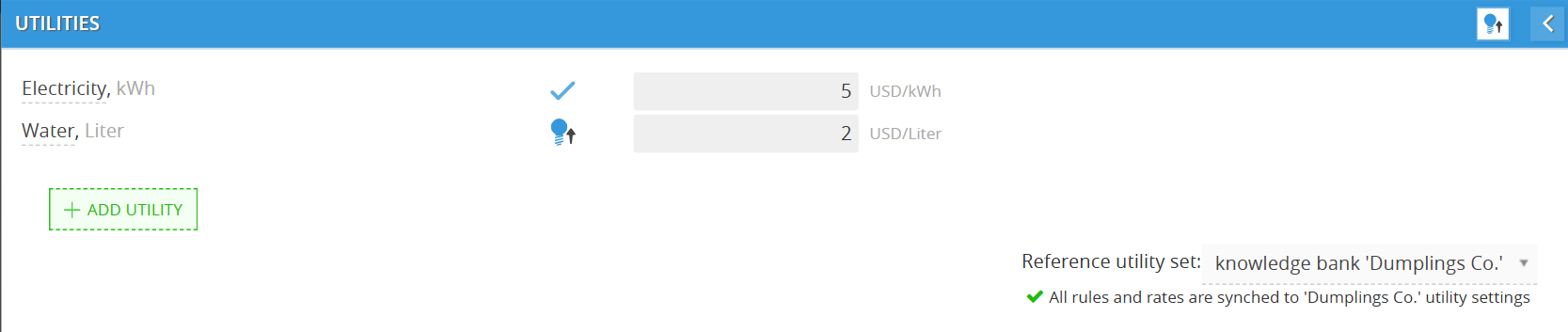
Select the Reference Set: In the bottom right of the Utilities screen, locate the dropdown menu. Change it from "No reference utility set indicated" to your specific Knowledge bank [Company Name].
-
Confirm the Sync: Once selected, the system will display a green checkmark with the message: "All rules and rates are synched to [Company name] utility settings."
-
Use the Sync Buttons (Light Bulbs):
-
Individual Sync: Click the Light Bulb icon next to a specific utility row (e.g., Water) to sync only that item. When successful, the icon will change to a blue checkmark.
-
Global Sync: To sync the entire utility list at once, click the Knowledge Bank button in the top-right corner of the header.
-
What is the Knowledge Bank (KB)?
The KB is essentially your company’s "Central Intelligence." It stores your standard operating costs so you can:
-
Reuse Data: Build a new scenario in seconds without looking up old bills.
-
Maintain Consistency: Ensure that your "Best Case" and "Worst Case" scenarios are using the same baseline costs.
-
Bulk Updates: When your utility provider raises rates, update the KB, and every linked scenario will update automatically.
💡 If this doesn’t solve your issue or you have more questions, feel free to reach out through our [contact form]. We’ll get back to you within 2–3 business days.
