In Decision Critical, you can change the currency of a specific scenario to match your reporting needs. Unlike global project settings, changing a scenario's currency allows you to convert all existing monetary inputs using a specific exchange rate, ensuring your financial model remains accurate during the transition.
Steps to Change Currency within a Scenario
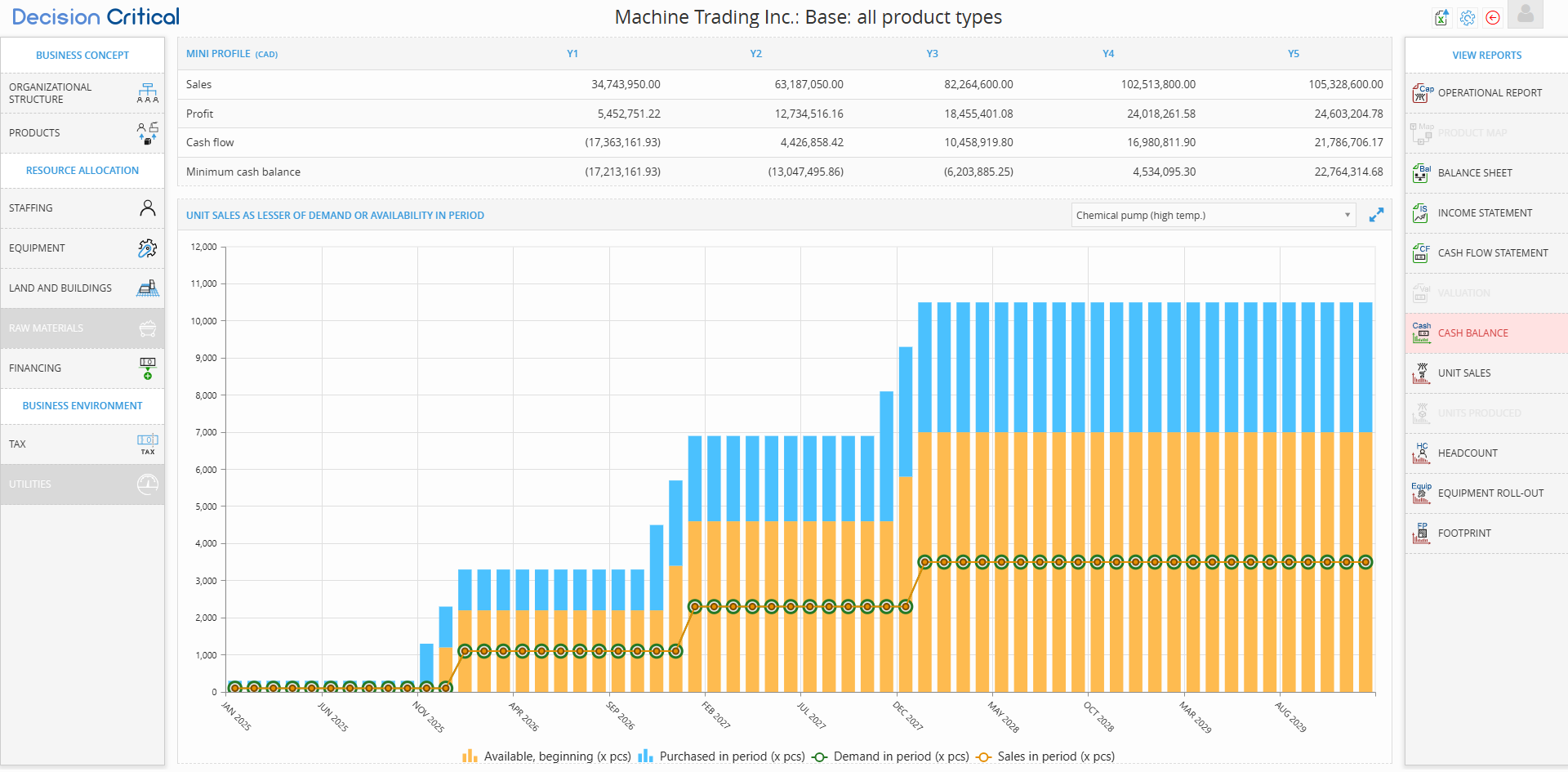
Follow these steps to update your scenario currency and convert your data:
-
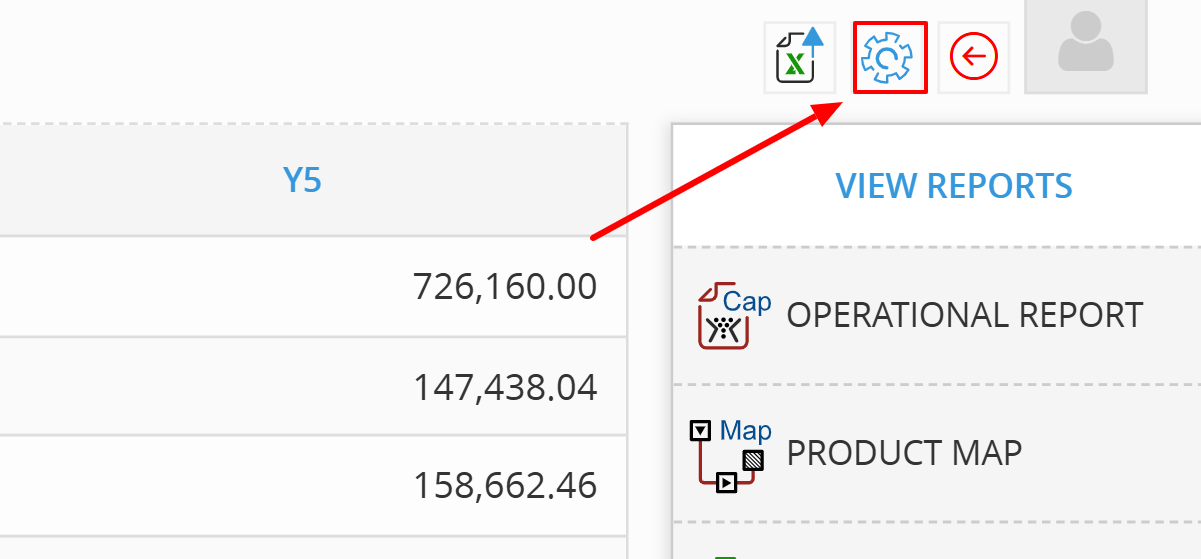
Open Scenario Settings: From within your scenario report view, click the Settings (blue gear icon) located in the top-right corner of the interface.
-
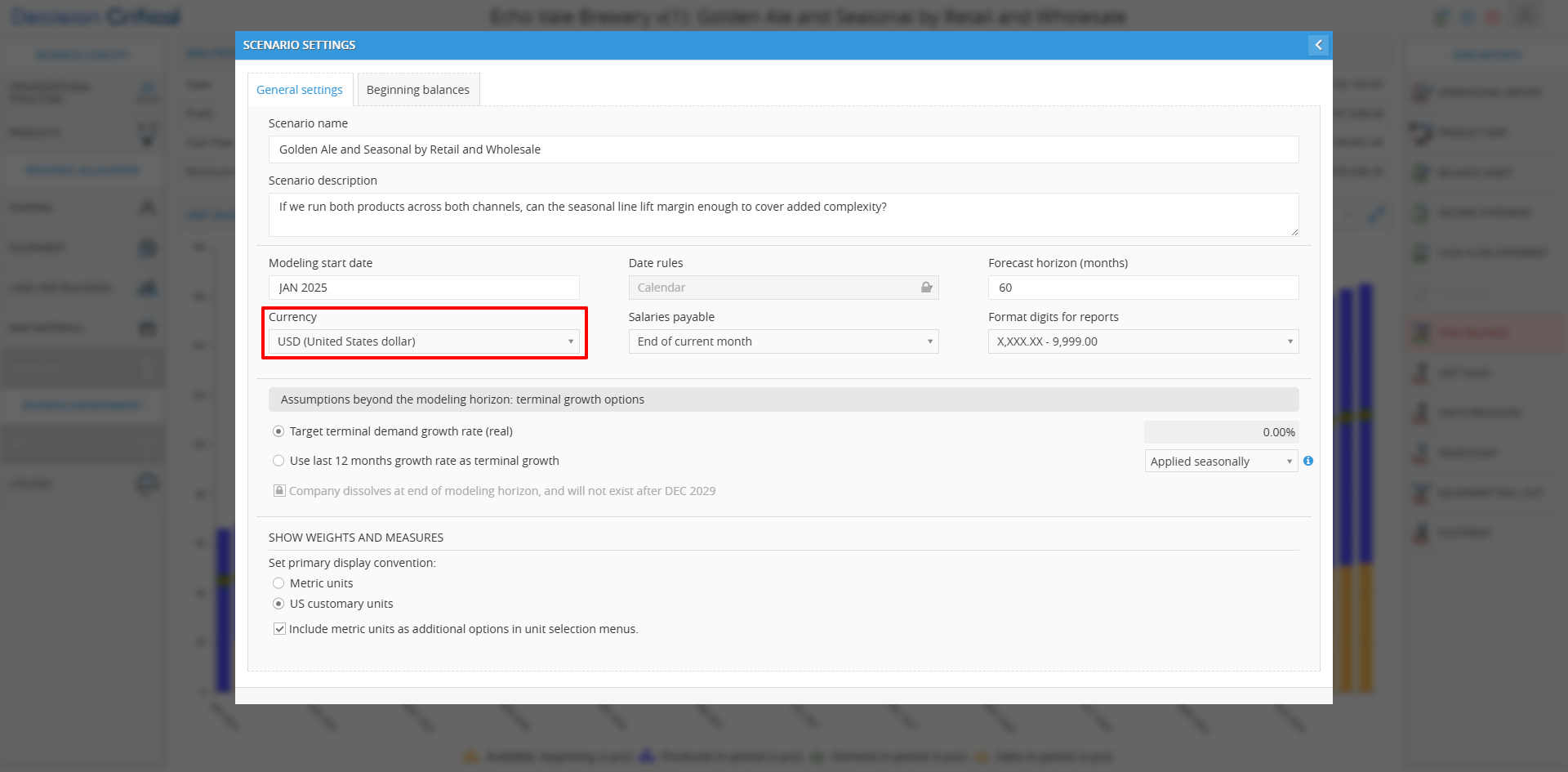
Locate Currency Dropdown: In the Scenario Settings modal, under the General settings tab, find the Currency field. Select your target currency (e.g., changing from USD to EUR) from the dropdown menu.
-
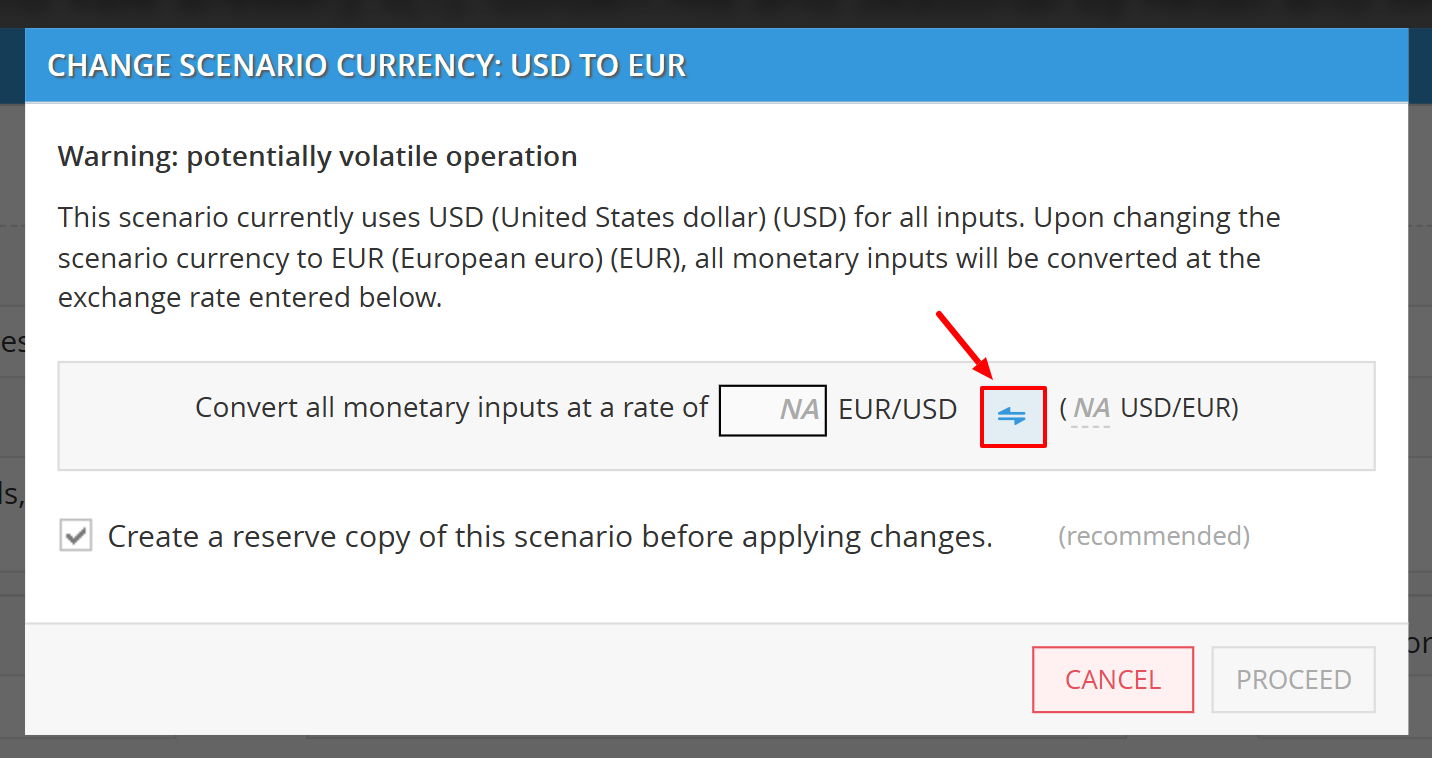
Configure the Conversion Rate: A "Change Scenario Currency" window will appear.
-
Enter the Rate: Type the exchange rate into the box provided.
-
Swap Direction: If you have the inverse rate, click the Swap Icon (double arrows) to toggle between currency pairs (e.g., from USD/EUR to EUR/USD).
-
-
Protect Your Data: We strongly recommend checking the box labeled "Create a reserve copy of this scenario before applying changes." This creates a backup of your original data in case the conversion needs to be reverted.

-
Apply Changes: Click the Proceed button. The system will now update all monetary inputs and refresh the currency labels (e.g., from "CAD" to "EUR") on your dashboard and reports.
FAQs
Why is the "Proceed" button greyed out?
The Proceed button will remain inactive until a valid numerical exchange rate is entered in the conversion box. Ensure there are no letters or symbols in the rate field.
What happens if I don't check "Create a reserve copy"?
If you do not create a reserve copy, the original values in the previous currency will be overwritten. If the exchange rate was entered incorrectly, you would have to manually recalculate and re-enter all your data. Always create a reserve copy for safety.
Does this change the currency for the whole project?
No. This process only changes the currency for the specific scenario you are currently editing. Other scenarios in the same project will remain in their original currency unless updated individually.
💡 If this doesn’t solve your issue or you have more questions, feel free to reach out through our [contact form]. We’ll get back to you within 2–3 business days.
