Sharing a single scenario has been part of Decision Critical for a while. With Team Access, Guest Access and Share Copy, you can invite teammates, consultants or clients with read-only or collaborative rights, or send them their own copy to work on. To read more, see Overview: Scenario and our blog post Extended Scenario Sharing.
In 2026, we took sharing a big step further. Now you can share a whole company and set rights for each module. Here's how it works.
Planning works best when the people who know the numbers build the model together. In Decision Critical, you can share at two levels:
- Company level: Add people to the company team once, and they get access to every module in the company.
- Module level: Share one scenario, the Knowledge Bank or the Historical Statements with specific people, with rights that apply to that module only.
In this article:
- How to share a company
- How to share a scenario
- How to share the Knowledge Bank
- How to share Historical Statements
- What happens when someone accepts your invitation
- Good to know
How to share a company
Every company has a Company host. The host manages all main settings and sharing for the company.
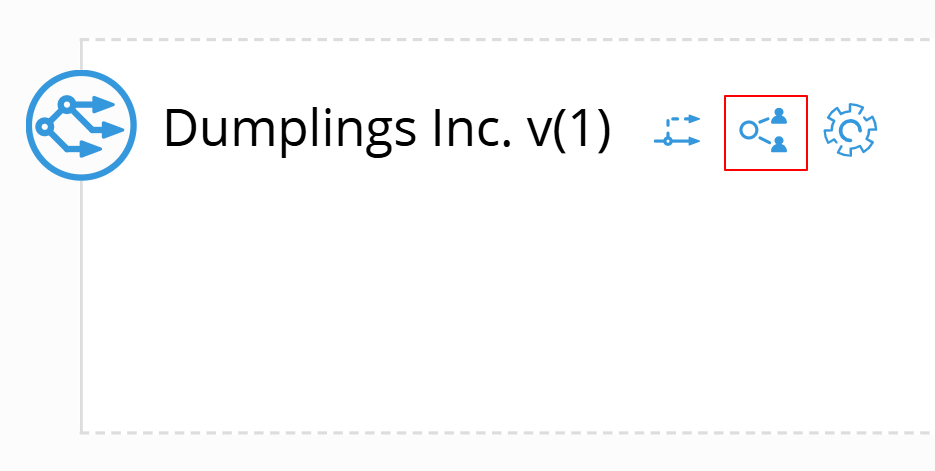
To open company sharing:
- On the analytics page, click the share icon next to the company name.
- The SHARING SETTINGS window opens.
The company team: who gets access to everything
The top part of SHARING SETTINGS shows the company team:
- Collaborative access: Team members who can view and make changes.
- Read-only access: Team members who can view, but not make changes.
- ALL USERS: Opens the list of users, so you can pick only the people you want.
- Allow scenario copying: Lets team members make their own copies of the company's scenarios.
Team members get access to all modules in the company by default. You can still change their rights case by case in the sharing settings of each module and scenario.
FYI: If you see the note "One or more scenarios or modules have been shared with users who have not been added to the team", someone outside the team has access to part of the company. Check the tabs below to see who.
How to share a scenario
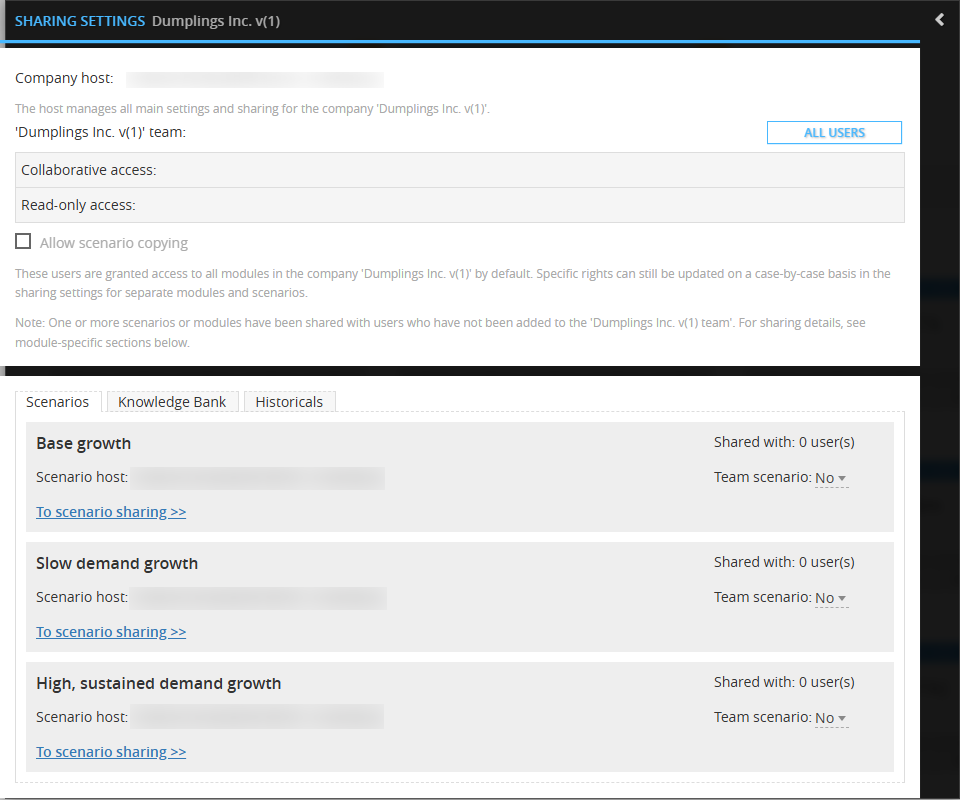
In SHARING SETTINGS, the Scenarios tab lists every scenario in the company. For each one, you can see its Scenario host, how many users it is Shared with, and whether it is a Team scenario.
- Team scenario: Yes Everyone in the company team can access the scenario, with the rights they have in the team.
- Team scenario: No: Only people you share the scenario with directly can access it.
To share one scenario with specific people:
- Click To scenario sharing >> under the scenario name. You can also click the share icon next to the scenario name in the scenario list.
- Choose one of three ways to share:
- Team Access: Share with other users in your company. This needs at least two users on the same subscription plan.
- Guest Access: Invite a specific person by email. Choose Read-only (view reports, no changes) or Collaborative (make changes to assumptions and reports). Tick Allow copying if they may copy the scenario, set an access period or leave it open-ended, and add an optional message.
- Share Copy: Send an independent copy to an email address. The recipient gets full rights to view and change their copy. Your original scenario is not affected.
- Click CONFIRM.
Tip: Sharing a scenario with your business owner? We kindly suggest Guest Access with Read-only rights. They see your numbers, and your model stays safe.
How to share the Knowledge Bank
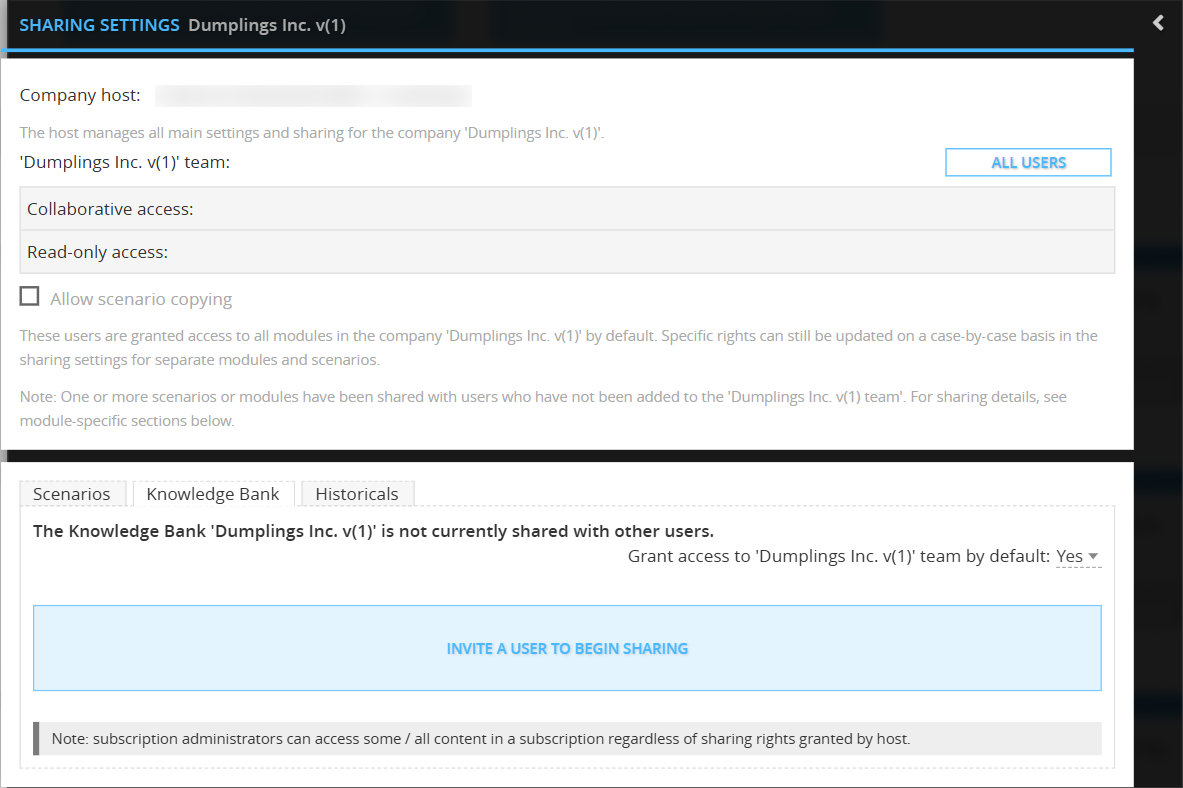
In SHARING SETTINGS, open the Knowledge Bank tab. Use Grant access to ‘[your company name]’ team by default to choose whether the company team gets access automatically (Yes) or not (No).
To share the Knowledge Bank with someone:
- Click INVITE A USER TO BEGIN SHARING.
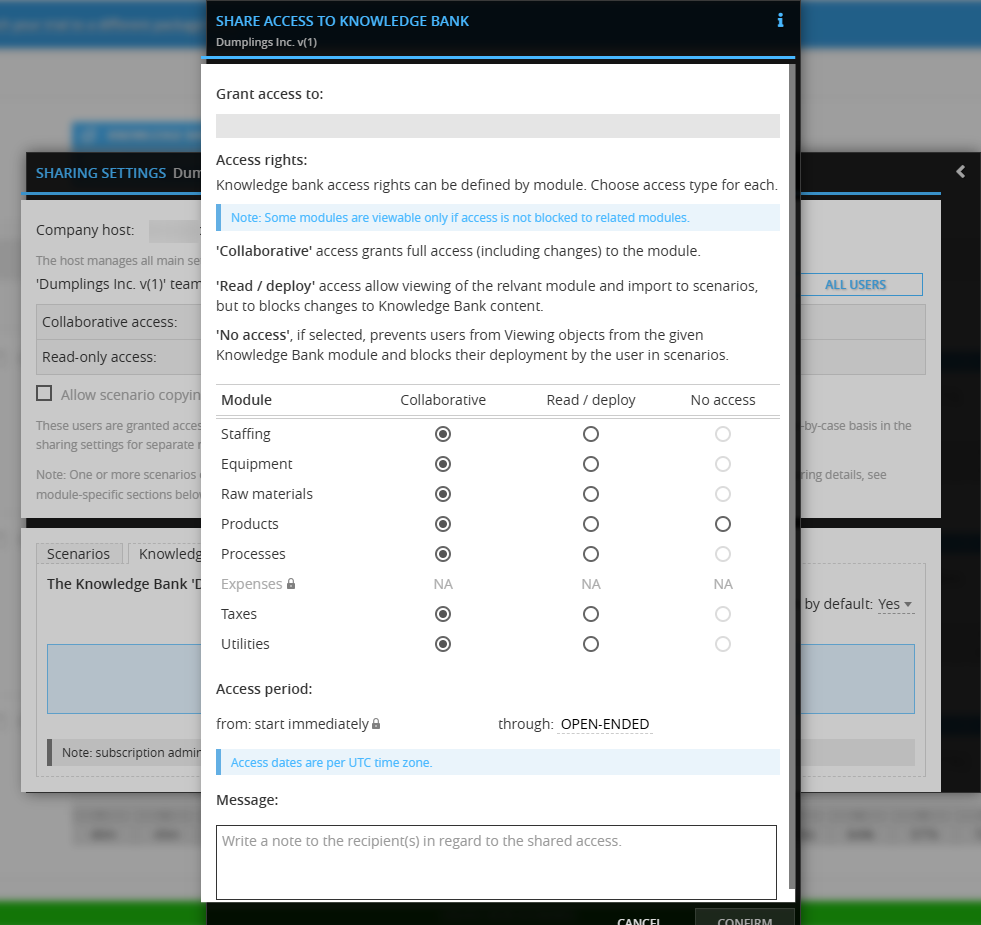
- In SHARE ACCESS TO KNOWLEDGE BANK, enter one or more email addresses under Grant access to.
- Under Access rights, choose a right for each module.
- Set the Access period. Access starts immediately and runs until the date you choose, or stays OPEN-ENDED.
- Add an optional Message and click CONFIRM.
You can set rights for each Knowledge Bank module separately: Staffing, Equipment, Raw materials, Products, Processes, Taxes and Utilities.
|
Access right |
What the user can do |
|---|---|
|
Collaborative |
Full access to the module, including changes |
|
Read / deploy |
View the module and import its items into scenarios, but not change Knowledge Bank content |
|
No access |
Cannot view the module or use its items in scenarios |
Please note: Some modules can only be viewed if access to related modules is not blocked. That is why No access is not available for every module.
How to share Historical Statements
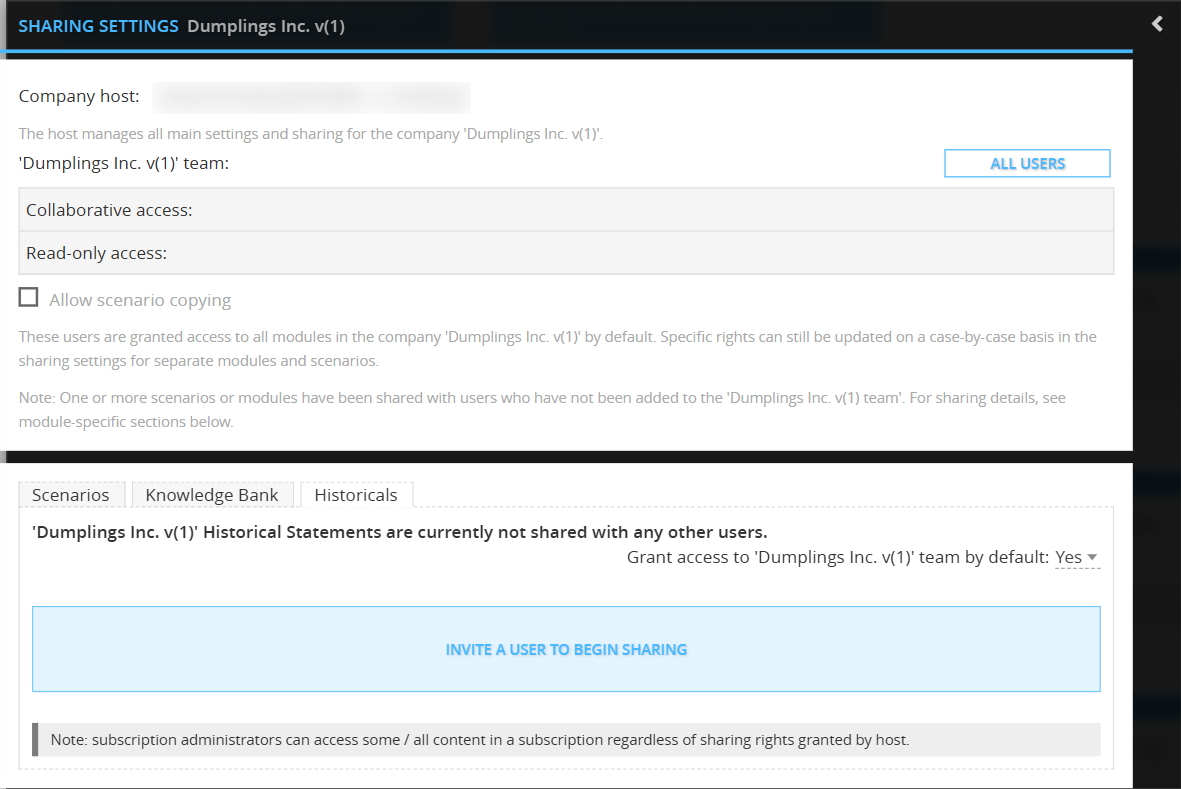
In SHARING SETTINGS, open the Historicals tab. As with the Knowledge Bank, use Grant access to '[company]' team by default to choose whether the company team gets access automatically.
To share Historical Statements with someone:
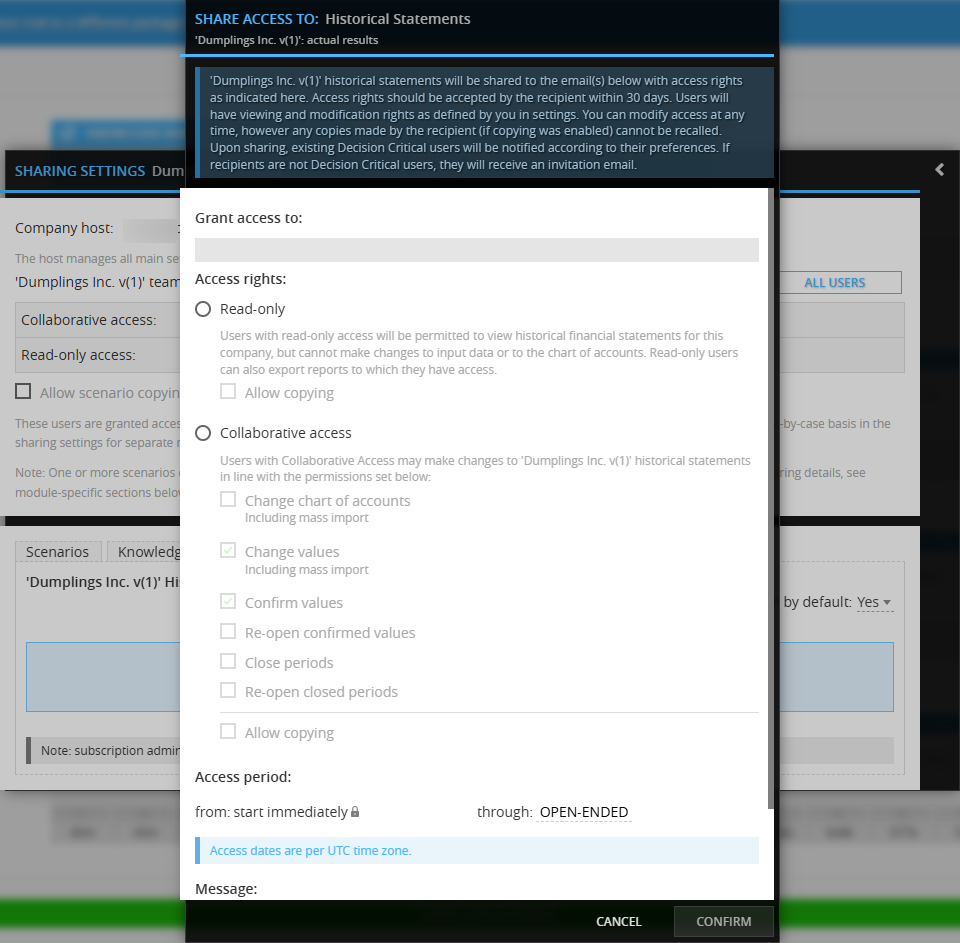
- Click INVITE A USER TO BEGIN SHARING.
- In SHARE ACCESS TO: ..., enter one or more email addresses under Grant access to.
- Under Access rights, choose Read-only or Collaborative access, then tick the options you want.
- Set the Access period and add an optional Message.
- Click CONFIRM.
Read-only users can view the company's historical financial statements and export the reports they have access to. They cannot change input data or the chart of accounts. You can also tick Allow copying.
Collaborative access users can make changes based on the permissions you tick:
- Change chart of accounts (including mass import)
- Change values (including mass import)
- Confirm values
- Re-open confirmed values
- Close periods
- Re-open closed periods
- Allow copying
Tip: Your accountant only needs to upload monthly results? Tick Change values and Confirm values only. Keep the chart of accounts and closed periods in your own hands.
What happens when someone accepts your invitation
The people you invite do not need a Decision Critical account first.
- Existing users are notified based on their notification preferences.
- New users receive an invitation email. When they accept it, we create a trial account for them automatically, and they can open what you shared right away.
- We also send new users an email to set a password. They need it to log in next time, not to open your invitation.
What they see first depends on what you shared. If you shared a scenario, they land on that scenario. If you added them to the company team, they see the company. What they can do there depends on the rights you gave them.
Good to know
- Invitations expire: Recipients must accept within 30 days.
- You stay in control: You can change or end access at any time.
- Copies cannot be recalled: If you allowed copying, any copy the recipient already made stays with them, even after you end their access.
- Dates are in UTC: Access periods start immediately and follow the UTC time zone.
- Subscription administrators: They can access some or all content in a subscription, regardless of the sharing rights set by the host.
- Leaving a shared company: Only the host can delete a company. If you are not the host, you can refuse access instead, and the company is removed from your COMPANY LIST.
For further assistance, visit the Help Center or contact support@decisioncritical.pro
